Chapter 16 - Sync & Clock
MIDI Clock & Transport
UNA can run as a standalone instrument, follow another device, or be the timing reference for everything else in your rig.
Two independent configuration settings decide this:
- MIDI Clock is the steady 24-pulses-per-quarter-note timing signal - the thing that keeps tempo locked between devices.
- Set it to IN to slave UNA's tempo to an incoming clock
- OUT to broadcast UNA's tempo to other gear
-
OFF to keep tempo to yourself.
-
MIDI Transport is the Start / Stop / Continue commands that begin and end playback.
- Set it to IN to let another device start and stop UNA
- OUT to start and stop other gear from UNA's own Play/Stop
- OFF to keep transport local.
Because they're independent, you get a grid of behaviours rather than three. The three matched combinations (both OFF, both IN, both OUT) are the classic standalone / slave / master setups most people want, and they're described first; the mixed combinations underneath them cover the less common rigs.
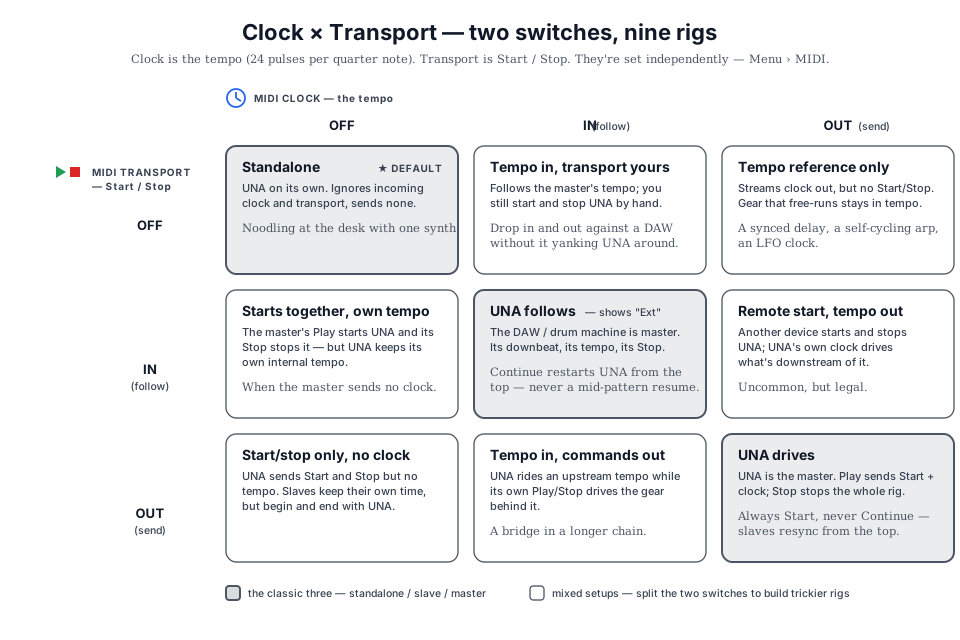
Both OFF - UNA on its own
The default. UNA's Play and Stop controls drive UNA, and nothing else. Incoming clock and transport messages from other gear are ignored, and UNA emits none of its own. Use this when you're plugged into a synth for sound only, when you're noodling at the desk, or when you don't want UNA tangled up with a DAW's timeline.
Both IN - UNA follows
Set MIDI Clock = IN and MIDI Transport = IN when something else is the master - a DAW, a drum machine, a groovebox, a modular system. UNA will:
- Start playing when it receives a Start or Continue message (Transport IN).
- Stop when it receives Stop (Transport IN).
- Tick its sequencer in time with incoming MIDI clock, so your tempo display tracks whatever the master is sending (Clock IN).
Continue behaves exactly like Start. UNA has no resume-from-position state, so an incoming Continue restarts its sequencer from the top, just as a Start would. If your DAW is parked at bar 33 and you hit its play button, the DAW resumes from bar 33 while UNA begins again from the top of its own pattern. That's usually what you want from a looping instrument, but it's worth knowing before a take. (UNA still forwards the message downstream unchanged - a Continue it receives is passed on as a Continue.)
UNA listens to the first clock source that speaks up - USB host, USB device, or TRS MIDI In - and ignores the others until that source goes quiet. So if your DAW and a hardware sequencer are both connected, whichever sends clock first wins. If you want to switch masters, stop the current one cleanly first.
Example: Your DAW is the timeline. Hit Play in the DAW, and UNA's sequencer starts on the same downbeat at the same tempo. Hit Stop in the DAW, and UNA stops with it. You don't touch UNA's transport controls at all.
Both OUT - UNA drives
Set MIDI Clock = OUT and MIDI Transport = OUT to make UNA the master. Now:
- Pressing Play sends a Start message out to your other gear (Transport OUT).
- Pressing Stop sends Stop (Transport OUT).
- While UNA is running, a steady stream of MIDI clock ticks (24 per quarter note, the standard) goes out alongside the notes (Clock OUT).
Wire UNA's MIDI Out into a drum machine, set the drum machine to external sync, and pressing Play on UNA will fire both at once and keep them locked.
A note on resume: UNA always emits Start when it transitions into playing - never Continue. If you stop and then start again, connected gear will treat that as a fresh start (resync from the top) rather than picking up where it left off. That's deliberate; UNA's transport doesn't have a "pause and resume" state internally, so it doesn't claim one externally either. It's the mirror image of how UNA treats an incoming Continue (above): no resume in either direction.
Mixed combinations - the off-diagonal setups
Splitting clock from transport lets you express rigs a single setting couldn't:
- Clock IN + Transport OFF - lock tempo, start locally. UNA takes its tempo from the master's clock, but you start and stop it by hand; incoming Start/Stop are ignored. Handy when you want your part perfectly in tempo with a DAW but under your own transport control - drop in and out without the DAW yanking UNA's playhead.
- Transport IN + Clock OFF - follow Start/Stop, keep your own tempo. The master's Play starts UNA and its Stop stops it, but UNA runs on its own internal tempo rather than chasing the master's clock. Good when two instruments should start together but UNA's tempo is the one that counts (or the master doesn't send clock at all).
- Clock OUT + Transport OFF - drive free-running gear. UNA streams clock out but sends no Start/Stop - for gear that only wants a tempo reference and free-runs otherwise (an LFO clock, a self-cycling arp, a tempo-synced delay).
- Transport OUT + Clock OFF - start/stop only, no clock. UNA sends Start and Stop but no clock, so a slave that keeps its own crystal starts and stops with UNA while running at its own rate.
Transport messages are only acted on when MIDI Transport = IN. With Transport OFF or OUT, an incoming Start, Continue or Stop is ignored by UNA's own transport (though it may still be passed through - see Thru, Chapter 15).
Live Play and the transport OUT sub-setting
UNA has a feature called Live Play: when the sequencer is stopped, holding a note on your keyboard runs the sequencer for as long as you hold the key. Release the key and the sequencer stops. It's a way to play arpeggios, chord patterns, and basslines as gestures rather than as a Play/Stop performance.
Holding Live Play with a sustain pedal. Live Play normally lasts only as long as your fingers are down. Plug a sustain pedal into your keyboard and UNA treats CC64 as a latch: hold the pedal and the sequencer keeps running even after you lift your hands, so you can move between chords without it stopping in the gaps - the same "hold" gesture a pianist gets from a damper pedal. Release the pedal and playback stops, unless you're still holding keys, in which case Live Play just carries on from them. Playing a new chord while the pedal is down changes UNA's harmony live, exactly as if you'd pressed Play. This is governed by the Live Play Sustain (CC64) Global (Chapter 17), which is ON by default; set it OFF to make Live Play always stop the instant you release the keys.
Foot-Play from a stopped state. The sustain pedal also works as a hands-free Play: press it with no keys held while the sequencer is stopped and UNA starts Live Play on the current (or last) sync chord, exactly as if you'd held a note down. Release the pedal to stop. Combined with the latching behaviour above, the pedal becomes a full foot-controlled Live Play - press to start, hold while you play the keys, release to stop. Requires the CONFIG menu Live Play setting (Chapter 17) to be ON, same as the held-key path.
When MIDI Transport is OUT (and/or MIDI Clock is OUT), Live Play raises a question: should holding a key broadcast transport and clock to the rest of your rig, the same way pressing Play does? Sometimes yes (you want the drum machine to lock in while you noodle a riff). Sometimes no (Live Play is for private experimentation; you don't want every key-hold restarting the drum machine).
The MIDI Out / Live Play setting (in the MIDI menu) decides:
- ON (the default): Live Play behaves like Play. Holding a key sends Start, streams clock while you hold, sends Stop when you release. Connected gear follows along.
- OFF: Live Play stays silent on the MIDI bus. Connected gear sits still until you press Play properly. If you're already holding keys and then press Play, that's when Start goes out.
Both settings live in Menu > MIDI: MIDI Transport is item 2, MIDI Out On Live Play is item 13.
A note on daisy-chaining
If you ever have UNA in IN mode reading transport from one device and you've routed UNA's output back to that same device (a loop), UNA does the safe thing and does not re-broadcast a Stop in response to an incoming Stop. You won't get a transport echo storm. (Most users won't hit this - it matters if you're building a multi-device sync mesh.)
Timing internals - the short version
Two facts worth knowing about UNA's timing engine when it's syncing to other gear.
Internal resolution. UNA runs at 384 ticks per bar internally - a high-resolution grid that makes swing, microtiming, and per-step Delay values feel natural rather than snapped. For MIDI clock output, UNA emits the standard 24 PPQN (24 pulses per quarter note). Both stay perfectly aligned with each other.
If external clock disappears. In IN mode, UNA doesn't run a watchdog for clock loss - if the master stops sending clock mid-play without also sending Stop, UNA continues at its last-received tempo until a Stop arrives or you press Stop manually. Not usually a problem in practice, but worth knowing if your DAW crashes mid-song.
Sync in practice
Three worked patterns cover the common multi-device sync scenarios.
Pattern 1 - UNA drives a drum machine
You want UNA to be the timing master and everything else to follow.
- UNA MIDI Out A → drum machine's MIDI In.
- Menu > MIDI > MIDI Clock = OUT and MIDI Transport = OUT.
- Drum machine set to external sync (whatever the manufacturer calls it).
- Press Play on UNA. Both start together; both stay locked. Press Stop on UNA. Both stop together.
If you also use Live Play (holding a keyboard note to run UNA), decide whether the drum machine should also lock in when you're holding: Menu > MIDI > MIDI Out On Live Play - ON (drum follows Live Play too) or OFF (drum ignores Live Play and only follows the transport control).
Pattern 2 - UNA follows a DAW
Your DAW's timeline is the source of truth.
- DAW → UNA (USB-C).
- Menu > MIDI > MIDI Clock = IN and MIDI Transport = IN.
- Enable MIDI clock output from your DAW (each DAW's setting has a different name - Ableton calls it "MIDI Clock," Logic "MIDI Sync," etc.).
- Hit Play in the DAW. UNA's sequencer starts on the DAW's downbeat at the DAW's tempo. Stop in the DAW. UNA stops with it.
If UNA doesn't start and follow the DAW, the DAW isn't sending clock - check the DAW's MIDI output settings.
Pattern 3 - UNA in the middle of a chain
UNA follows one device and drives another - a common studio pattern where UNA sits between a master (say, a DAW) and a slave (say, a drum machine or modular clock).
- DAW → UNA (USB-C). UNA follows the DAW.
- UNA MIDI Out A → drum machine. UNA drives the drum machine.
- Menu > MIDI > MIDI Clock = IN and MIDI Transport = IN (UNA is a slave to the DAW).
- Enable clock broadcast through UNA - this happens automatically when Clock and Transport are IN with an active clock source; UNA relays clock and transport to its own outputs.
Hit Play in the DAW. All three devices start together on the same downbeat. UNA takes the DAW's tempo, then hands it downstream. The drum machine has no idea the DAW exists - it just sees clock arrive from UNA.
The daisy-chaining safety noted above (UNA doesn't re-broadcast Stop back to its input source) matters here - if you happen to route the drum machine back into your DAW's MIDI network, UNA won't create a Stop-echo loop.
Pattern 4 - UNA drives a modular via MIDI-to-CV
For synchronising a modular system to UNA, you need a MIDI-to-CV converter with a clock output. A good compact option is the FLAME uQMCV - a small MIDI-to-CV interface with clock, note, and gate outputs.
- UNA MIDI Out A (TRS Type-A) → uQMCV MIDI In. Use a TRS-to-TRS cable if the uQMCV takes TRS Type-A directly, or the TRS-to-DIN cable from UNA's box if it uses a 5-pin DIN MIDI input.
- uQMCV clock output → modular clock input. The uQMCV converts UNA's MIDI clock stream into a per-quarter-note gate pulse (or a division of it, depending on how you configure the uQMCV).
- Menu > MIDI > MIDI Clock = OUT (Transport = OUT too if you want Play/Stop to gate the modular; leave Transport OFF to free-run and drive the modular from clock alone).
- Set the uQMCV's clock output to your preferred subdivision - 24 PPQN raw is uncommon on modular; more likely you'll want the uQMCV to divide down to a 1/16 or ⅛ note clock that a Maths, Metropolix, or Pamela's will accept.
Press Play on UNA. The modular's clock input receives the pulse; whatever's downstream (envelopes, sequencers, LFOs) locks in.
The uQMCV can also convert UNA's per-track MIDI channels to independent CV/gate pairs - meaning UNA can send note information to the modular too, not just clock. Set the Bass Track's channel to whatever the uQMCV is listening on, wire that CV/gate pair to a modular voice, and now UNA's bass line is playing an actual oscillator in the modular. Combined with the sync above, you've got a modular voice that plays UNA's basslines locked to UNA's timing.
Pattern 5 - Two UNAs synced together
Two UNAs give you a lot more Modulator slots, a lot more patch memory, and the ability to keep two independent parts running that share a common transport. Common workflow: one UNA does chords and bass, the other does melody with a totally different Modulate setup - they play together as a single instrument with double the parameter surface.
- UNA #1 (the master) MIDI Out A → UNA #2 (the slave) MIDI In.
- UNA #1: Menu > MIDI > MIDI Clock = OUT and MIDI Transport = OUT.
- UNA #2: Menu > MIDI > MIDI Clock = IN and MIDI Transport = IN.
- Each UNA drives its own synths from its own MIDI outputs.
Press Play on UNA #1. Both start together at UNA #1's tempo. Change tempo on UNA #1 (press-and-rotate Knob 1) and UNA #2 follows.
If you want the two UNAs to play different tracks together - for example, UNA #1 handles Chord + Melody and UNA #2 handles Bass - mute the redundant tracks on each unit's Mixer. Track mute state is a Global (Chapter 17), so once you've set it, it stays set across patch changes on that unit. You end up with a "distributed" instrument: chord/melody on one screen, bass on the other, both locked.
For live performance, keep UNA #1 as the "conductor" (the one whose Play/Stop control is authoritative). UNA #2 follows silently until UNA #1 starts.
Pattern 6 - Switching masters mid-set
Sometimes you want UNA to follow a DAW during a song, then take over as the standalone master during a break, then follow again. Switching the Clock and Transport settings mid-set is possible but not instant - the gesture chain is: hold CONTROL → MENU → MIDI → CONTROL Knob rotate to the Clock item (or Transport, the item after it) → press-and-rotate CONTROL Knob to change value → BACK, BACK. A handful of presses per setting, which is fine at a break but not fine during a song.
Two tactics for smooth transitions:
Tactic A - cued switch. Before the break, stop the master (the DAW) cleanly. UNA's transport also stops. Do the Menu switch to change MIDI Transport (and Clock) from IN to OFF while things are stopped. Press Play on UNA. UNA is now the standalone master. When the master comes back later, stop UNA, switch Transport and Clock back to IN, and wait for the master's next Start.
Tactic B - lock tempo, keep local transport. The split offers a cleaner version of this: set MIDI Clock = IN but MIDI Transport = OFF. UNA stays locked to the master's tempo, but its own Play/Stop is always yours - you drop in and out by hand without the master starting or stopping UNA, and without any menu diving mid-song. (If you instead want to swap which upstream device is the clock source, leave Clock = IN and switch which device is sending clock: UNA follows whichever source starts first - see the first-source-wins note earlier in this chapter - but make sure only one source sends clock at a time.)
Tactic A is more explicit and safer; Tactic B is faster but requires disciplined clock management upstream. Neither is perfect. For anything that requires split-second timing, don't switch masters mid-song - plan the transition into a natural break.
Cross-references
- Chapter 13 - tempo, time signature and the click.
- Chapter 15 - MIDI I/O - the physical ports and routing settings that the sync setup rides on.
- Chapter 17 - the MIDI Clock, MIDI Transport, and MIDI Out On Live Play Globals, item by item.