Chapter 1 - Welcome & Overview
Welcome to CONNECT.
Midicake CONNECT is the companion app for Midicake hardware. It runs in your browser at connect.midicake.com - no download, no install, no account. Plug your Midicake into your computer, open the page, and you have a patch librarian, a live screen mirror, a MIDI visualizer, and a rig-planning canvas, all in one window.
CONNECT works with Midicake UNA and Midicake ARP, and treats them the same way: connect the device, press Go Live, and every panel that talks to hardware lights up.
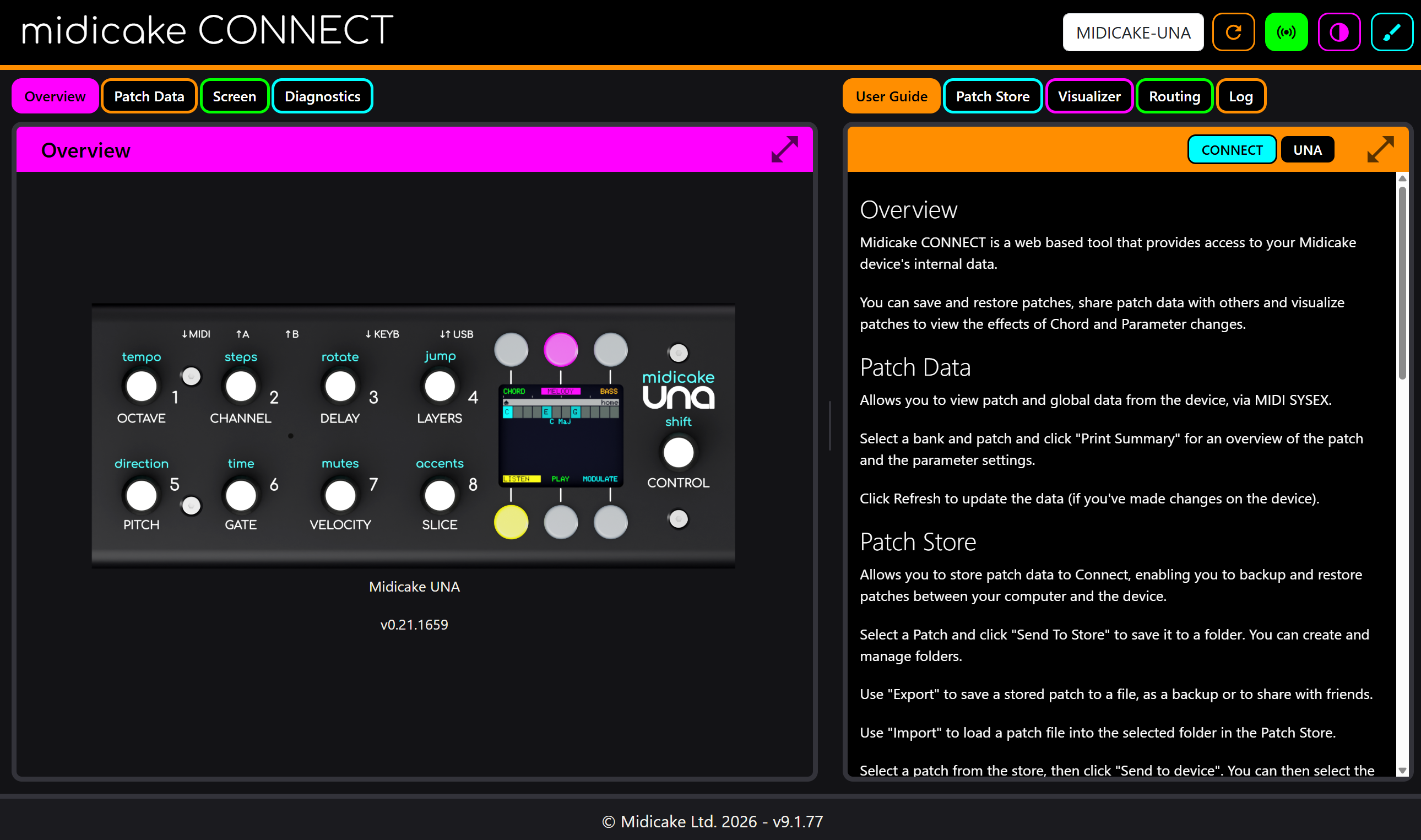
What CONNECT does
- Back up and organise your patches. Read every patch and bank off the device, keep them in named folders in the Patch Store, rename them, lock them against accidents, and send them back - individually or as a whole bank. Export folders as files to share or archive.
- Mirror the device screen. See the LCD live on your monitor, pixel for pixel. Useful on stage, in the studio, when recording tutorials, or any time the hardware is out of arm's reach.
- Visualize your MIDI. Five real-time visualizations of the notes your device is playing, coloured per channel.
- Plan your rig. A node-graph canvas for mapping the MIDI devices in your setup - who sends on which channel, where conflicts and feedback loops hide.
- Diagnose problems. Fetch crash reports and live logs from the device when something misbehaves, ready to send to Midicake support.
- Read contextual help. The built-in guide follows the mode your device is in and shows the relevant page as you work.
What CONNECT deliberately isn't
CONNECT is a companion, not a replacement. Sequencing, sound-shaping and performance stay on the hardware, where the knobs are. CONNECT gives you the things a browser does better: big-screen visibility, safe storage, organisation, and a keyboard for renaming things.
There is also no cloud. Your patches, rigs and settings live in your browser's local storage on your machine - nothing is uploaded anywhere. That has one important consequence covered in Chapter 14: your browser's data is the library, so exports are your backups.
Where to start
- Just plug in. Chapter 2 gets you from cable to live screen in about two minutes.
- Check your browser first. CONNECT relies on Web MIDI and Web Serial, which not every browser supports - Chapter 3 has the compatibility table.
- Understand the connection model. Chapter 5 explains the two levels of connection - MIDI and Live - and which features each unlocks. Five minutes there saves confusion everywhere else.