Chapter 8 - Patch Store
The Patch Store is your patch library - folders of patches that live in your browser, independent of what's on the device. It's where backups land, where you stage patches before sending them to hardware, and how patches travel between people as files.
Where Patch Data (Chapter 7) shows what's on the device, the Patch Store shows what's yours. The two panels side by side - Patch Data left, Patch Store right - is the natural working layout.
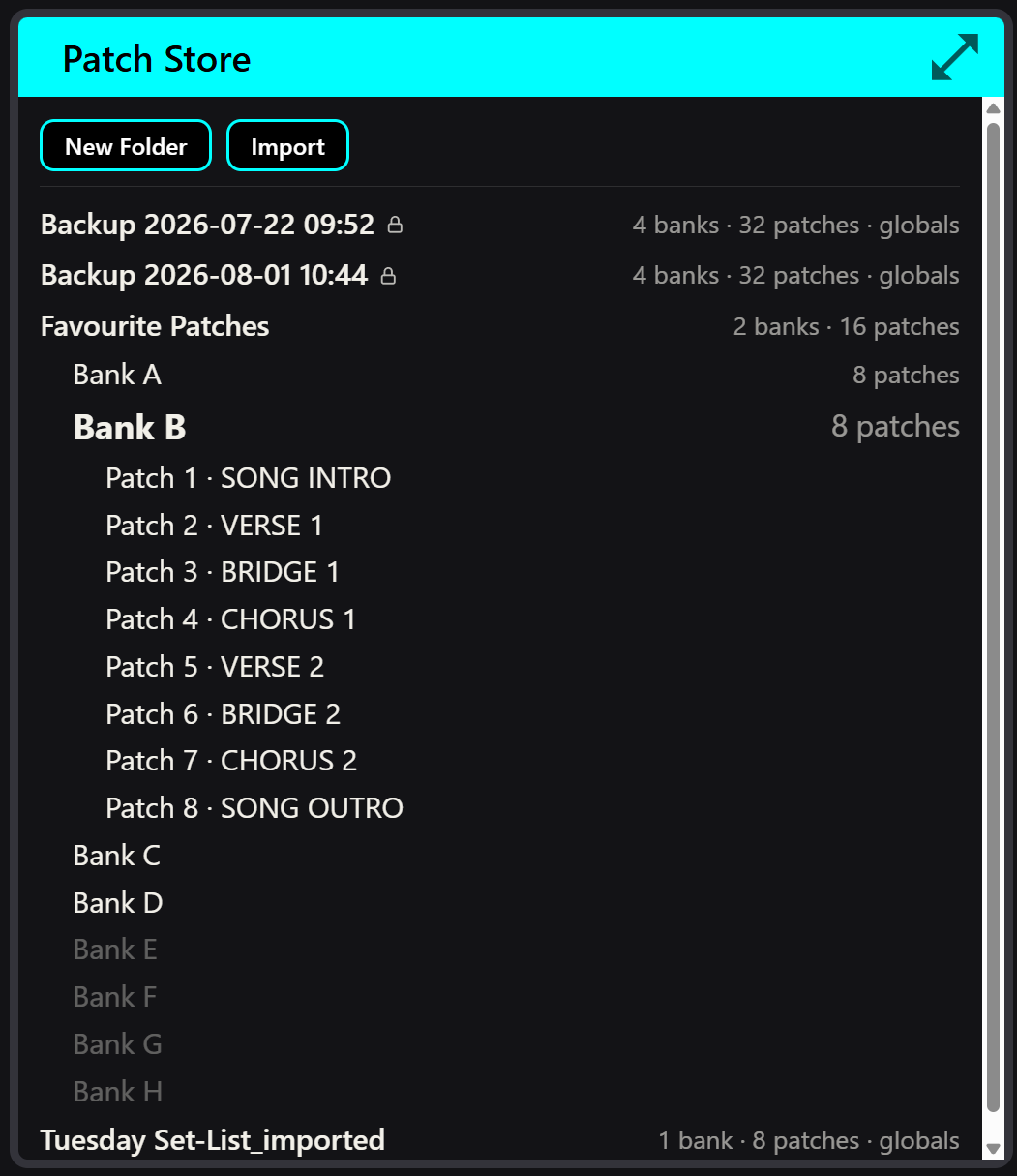
The shape of the library
Folders → banks → patch slots, mirroring the device's own layout:
- A folder is a full device-worth of patches - banks and all. Create as many as you like: one per song, per set, per experiment.
- Inside each folder, banks lettered like the hardware's. Banks beyond what current firmware supports appear greyed out - reserved for future firmware, not clickable today.
- Inside each bank, the patch slots, named.
The folder-equals-device shape is what makes transfers unambiguous: sending a folder to the device maps bank A to bank A, slot to slot, positionally.
Everyday actions
- New Folder - an empty device-worth of slots.
- Rename - double-click a folder or patch slot to rename inline. Patch names are real device data: the name is written into the patch itself, in the device's own character set, and travels to the hardware when you send it. Renaming in the Store is renaming the patch.
- Lock / Unlock - a locked item can't be overwritten or deleted until you unlock it. Backups arrive locked; lock anything else you'd hate to lose.
- Delete / Clear - remove a folder, or clear a slot. Locked items refuse politely.
- Export / Import - a folder exports as a single JSON file; Import brings one in, always as a new folder - imports never overwrite existing folders. This is the sharing format: send the file to a friend, they import it, done.
Backups
Patch Data → Device Actions → Backup Device reads the entire device and files it here as a folder that is:
- Locked on arrival - it can't be casually overwritten or deleted.
- Stamped with provenance - which device it came from, the firmware version, the storage layout version, and when it was captured.
A backup isn't a special file format hidden somewhere - it's an ordinary folder in your library, restorable in whole or in part, exportable like any other. The lock and the stamp are what make it trustworthy.
Back up before you experiment, before firmware updates, and before restoring anything. Two clicks. The habit pays for itself the first time it matters.
Sending to the device
Transfers to hardware always confirm before they touch anything, inline in the panel - and the confirmation says exactly what will be overwritten:
- Send a patch - one patch to one slot. You'll see WARNING: THIS WILL OVERWRITE THE EXISTING DATA! and confirm or cancel.
- Send a folder - the whole folder, positionally: bank A to bank A, slot for slot. The confirmation summarises the scope, with an Include Globals checkbox - off by default, because overwriting device settings is a bigger decision than overwriting patches.
- Copy to Store - duplicate within the library, no device involved.
During a write, let it finish - interrupting a read is harmless, but pulling the cable mid-write can leave a slot half-written. Transfers are quick; there's rarely a reason to.
The safety guard
Every patch records which storage layout version it was made under. Firmware updates can change that layout - and a patch written under one layout, restored under another, would corrupt silently.
CONNECT refuses the bad combination outright: if a patch's layout version doesn't match the connected device's, Send to Device and Restore decline with a clear message rather than writing garbage. Nothing on the device is touched.
If you hit the mismatch message: it means this stored data predates (or postdates) your device's current firmware layout. Check midicake.com/support for whether a migration path exists for that combination.
Where the library actually lives
In your browser's local storage, on this machine. No cloud, no account - and no copy anywhere else either:
- A different browser (or a different computer, or a private window) has a different library.
- Clearing browser site data deletes the library. Not to a recycle bin - gone.
Export is your real backup. Folders you'd mind losing should exist as exported JSON files somewhere safe - a backup drive, cloud storage, an email to yourself. Chapter 14 covers the full picture of what lives where.