Chapter 4 - The CONNECT Layout
One window, two panes, nine panels. This chapter names the parts so the rest of the manual can refer to them.
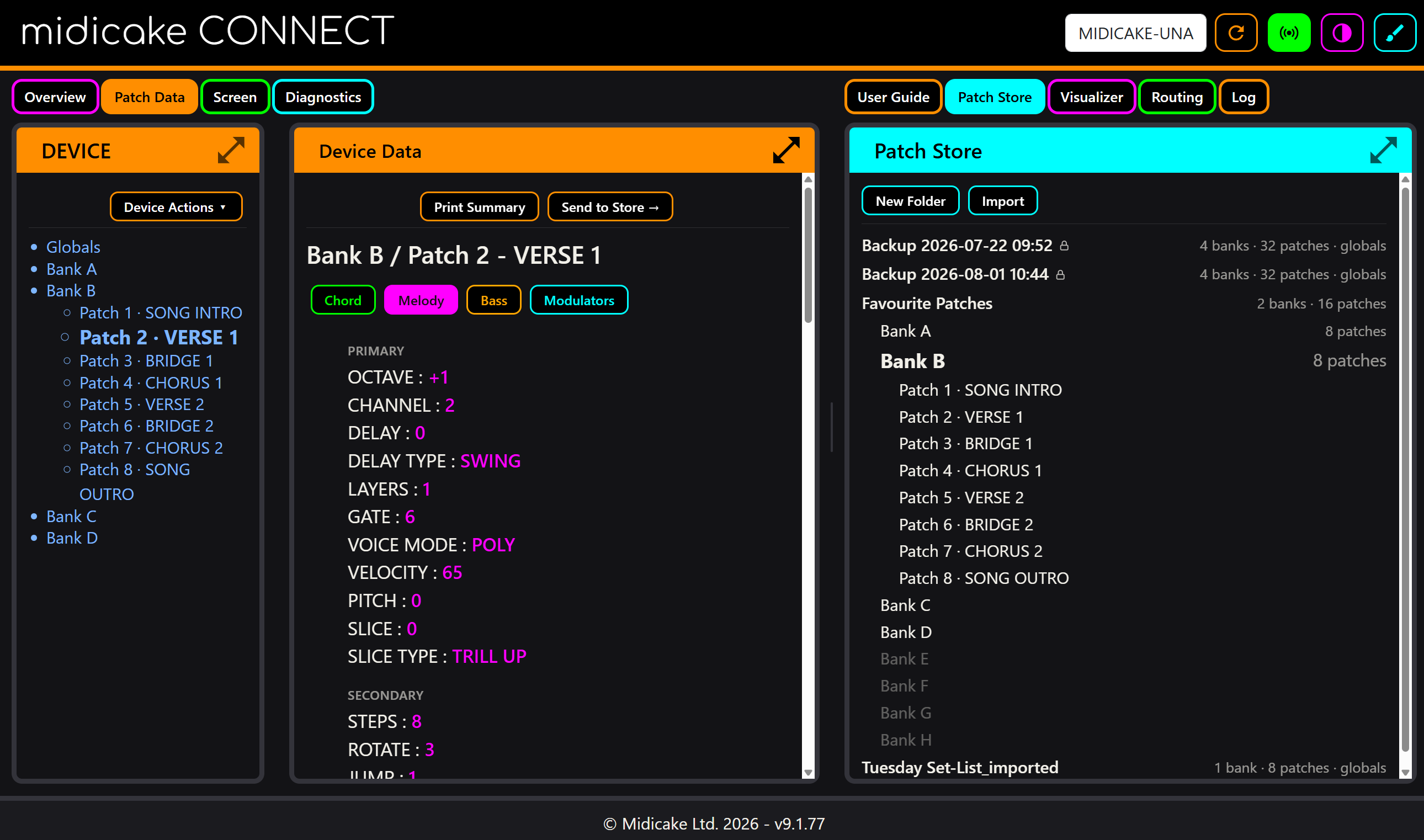
The top bar
Left to right:
- Device selector - a dropdown listing connected Midicake hardware. CONNECT filters out everything else on your system; if it says NO DEVICE FOUND, no Midicake is visible to the browser.
- ↻ Reconnect - re-scans for devices. Use it after plugging in or switching cables.
- Go Live - the broadcast icon. Opens the direct hardware connection (Chapter 5). Green while Live.
- Theme toggle - switches between light and dark. CONNECT follows your system preference on first visit and remembers your choice after that.
- Channel colours - the brush icon opens a palette with one colour per MIDI channel (1-16). These colours are shared everywhere channels appear - Visualizer notes, Routing wires - so a channel looks the same across the app. Edit any colour with a live preview, or Reset to the factory palette.
Two panes, nine panels
The window splits into a left pane and a right pane, each with its own row of tab buttons. Any left panel can sit beside any right panel - the pairing is yours.
| Left pane | Right pane |
|---|---|
| Overview | User Guide |
| Patch Data | Patch Store |
| Screen | Visualizer |
| Diagnostics | Routing |
| Log |
A deliberate pattern in the split: device things live on the left, library and monitoring things on the right. Patch Data (left, the device) next to Patch Store (right, your library) is the pairing you'll use most - transfers flow between the two panes.
The splitter
The bar between the panes drags to resize. Double-click resets the split to its default; with the splitter focused, the arrow keys nudge it. The position is remembered between visits.
View controls
Each panel carries a small set of view controls in its header:
- Expand / Contract - grow the panel within its pane.
- Fill screen - the panel takes the whole browser window.
- Fullscreen - the panel takes the whole monitor. Press Esc to leave.
Fullscreen is where the Screen mirror and Visualizer earn their keep - a laptop behind the device becomes a stage display.
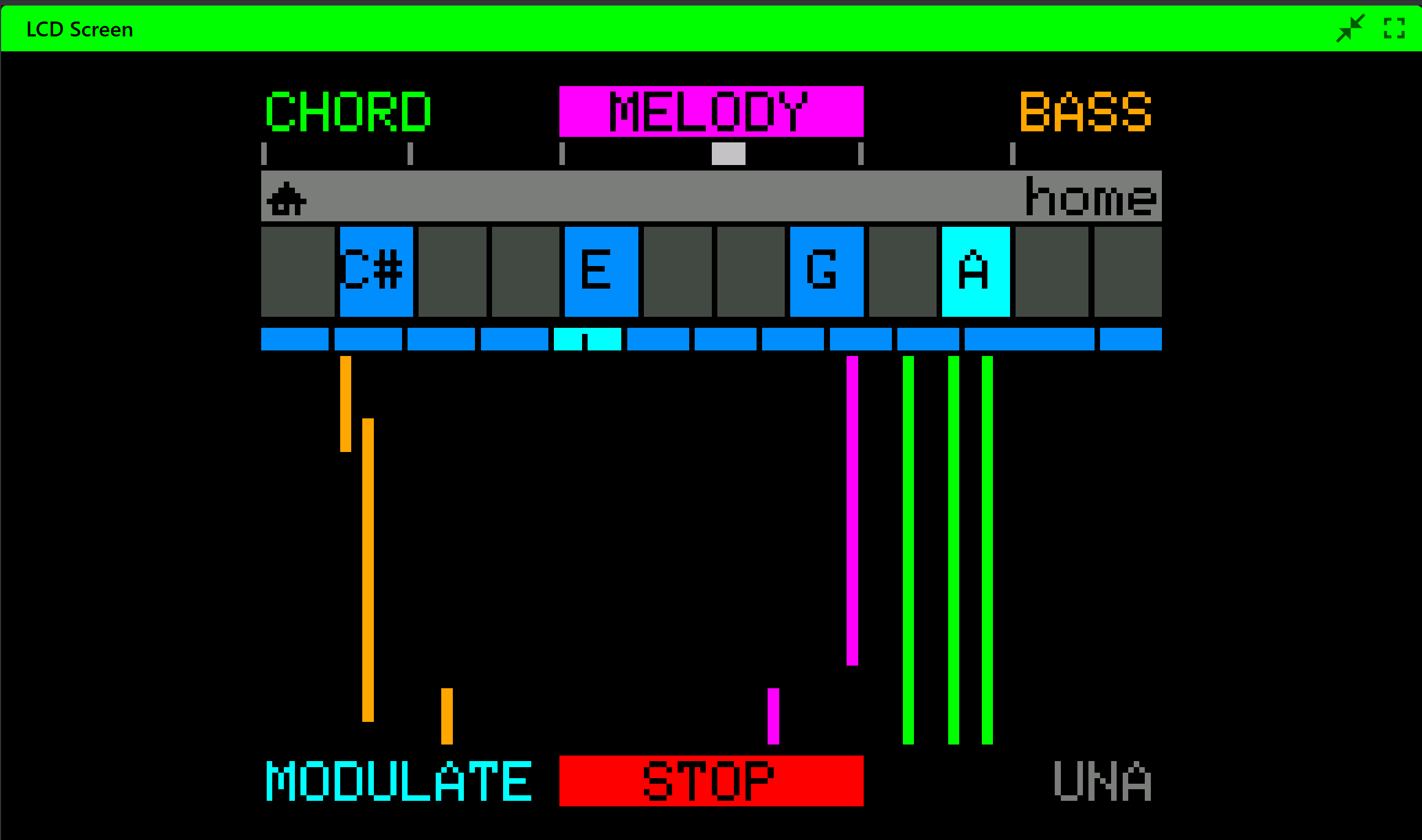
Cinema mode
In fullscreen on the Screen or Visualizer panels, a Cinema button cycles three layouts: Screen only, Visualizer only, or a split of both. One monitor, LCD mirror on one side, notes raining down the other. The chosen layout is remembered.
What CONNECT remembers
CONNECT saves your workspace as you go - no save button, no setup to repeat:
- which panel is open in each pane, and the splitter position
- theme and channel colours
- visualizer mode and marker choice
- Cinema layout
- your Patch Store folders and Routing rigs (these are your data, not just preferences - Chapter 14 explains where they live and how to keep them safe)
Everything is stored locally in the browser. Clear the browser's site data and all of it - preferences and library - goes with it. That warning gets a whole section of its own in Chapter 14.