Chapter 6 - Screen Mirror
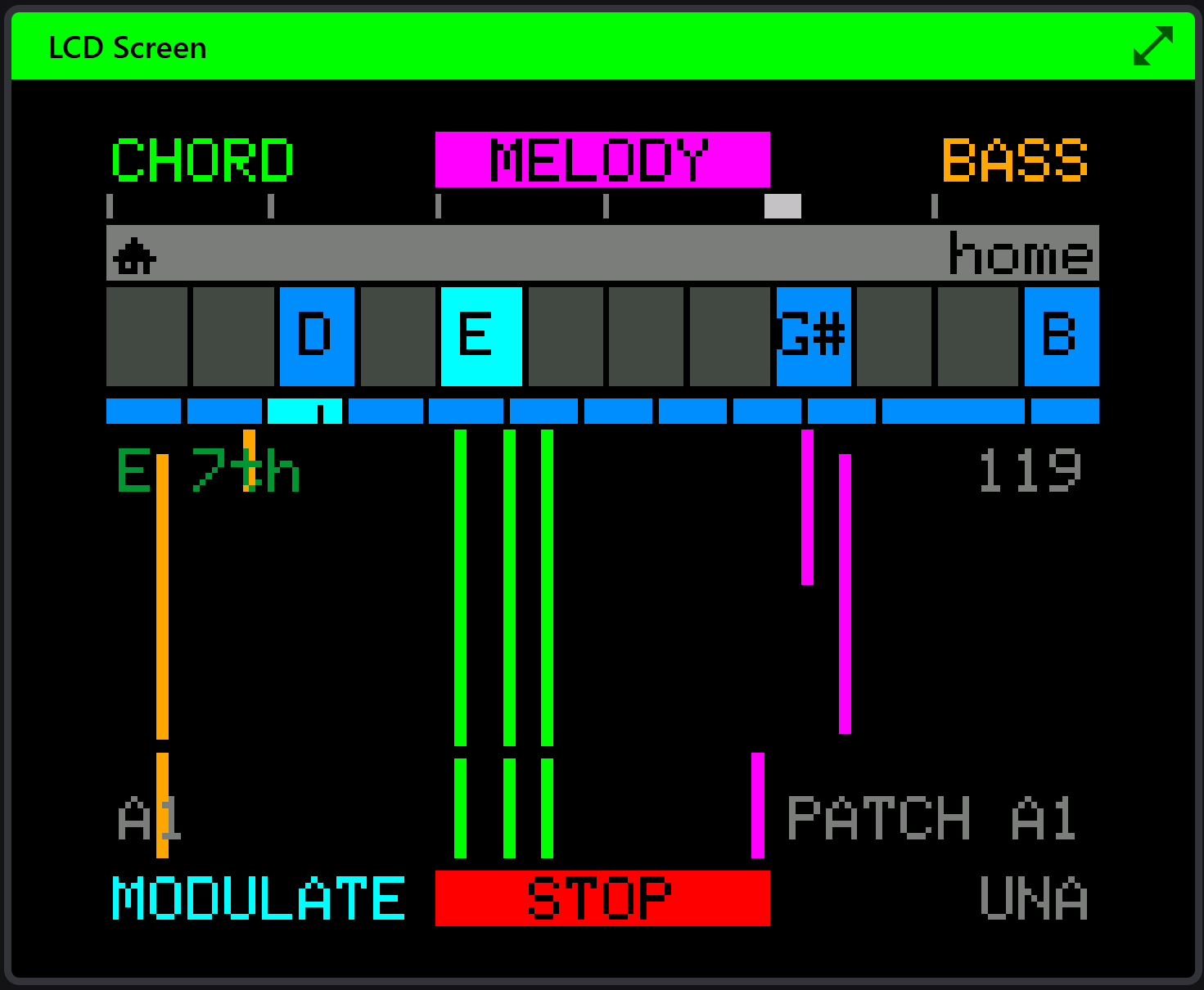
The Screen panel mirrors your device's LCD in the browser, live and pixel for pixel. What the hardware draws, you see - mode screens, parameter edits, the playhead moving through a sequence - at whatever size your monitor allows.
Starting the mirror
The mirror needs the Live connection (Chapter 5). Until you're Live, the panel shows a black screen and a prompt - the broadcast icon in the prompt is a shortcut to the same Go Live button as the top bar.
Once Live, the mirror starts by itself. There's nothing to configure: the device streams its display and CONNECT paints it.
What you're seeing
The device's screen is a 160 × 128 pixel panel. CONNECT renders the actual framebuffer - not a reconstruction - so everything appears exactly as on the hardware: the same colours, the same fonts, the same pixel grid. Scaling is done crisply, so at large sizes you see clean sharp pixels rather than a blurred stretch.
The stream is continuous while Live, with one deliberate exception: during patch transfers, backups and diagnostics fetches, CONNECT briefly pauses the mirror so the data transfer gets the full bandwidth of the connection. It resumes by itself when the transfer finishes. A momentary freeze during a Read All is normal, not a fault.
Making it big
The panel's view controls step up through Expand, Fill screen and Fullscreen (Chapter 4). Fullscreen is the natural home for the mirror:
- On stage - a laptop or tablet where the audience or bandmates can see what you're doing.
- Teaching and streaming - screen-capture the browser and your viewers see the device UI at broadcast size.
- In the studio - the device can sit in the rack while its screen floats on your monitor.
Cinema mode
In fullscreen, a Cinema button appears and cycles three layouts:
- Screen - the mirror alone.
- Visualizer - the note visualization alone (Chapter 9).
- Split - both side by side: the device UI on one half, the music visualized on the other.
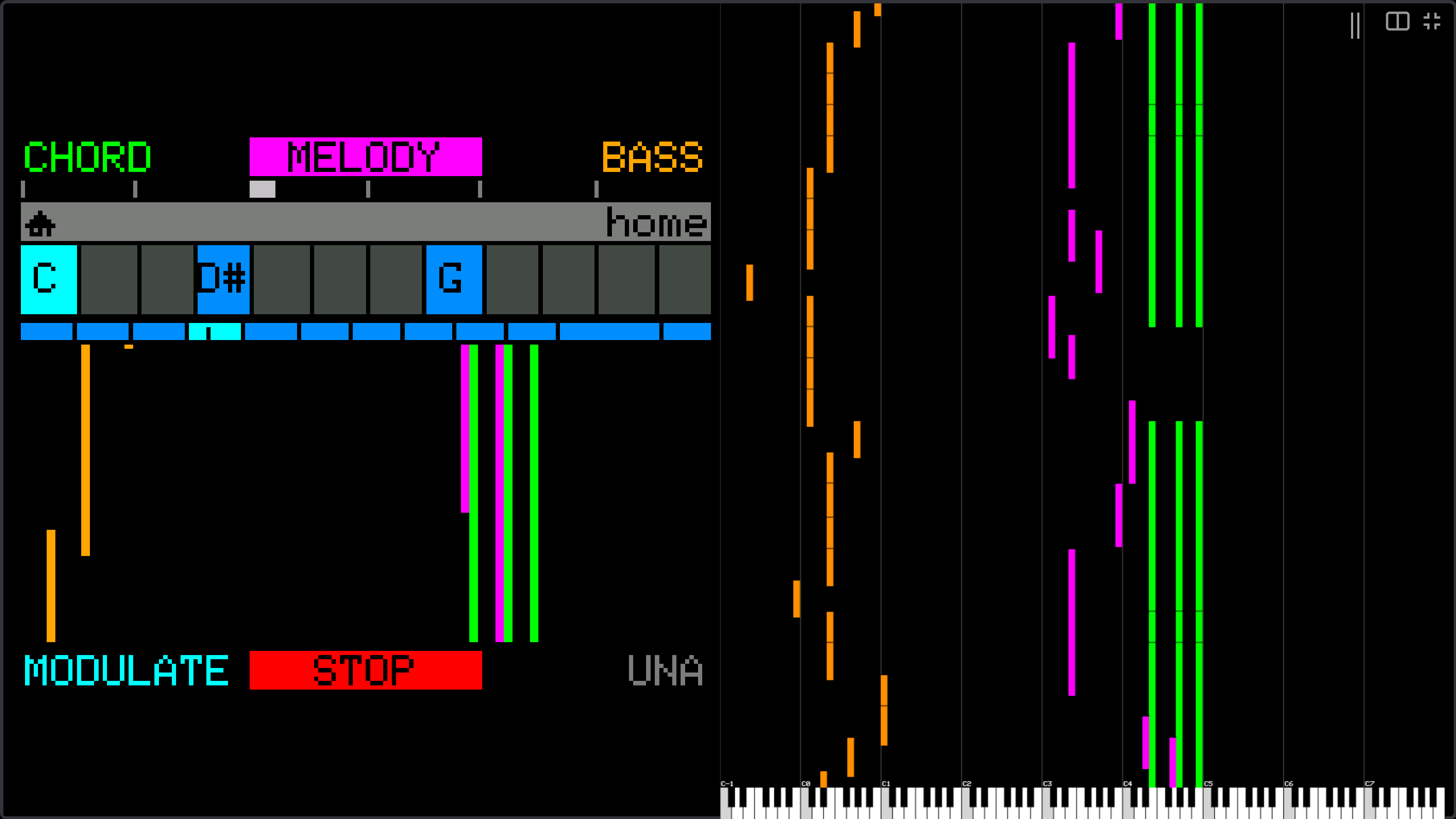
The split is the show layout - one glance covers what the device is doing and what it's playing. Your chosen layout is remembered for next time.