Chapter 9 - Visualizer
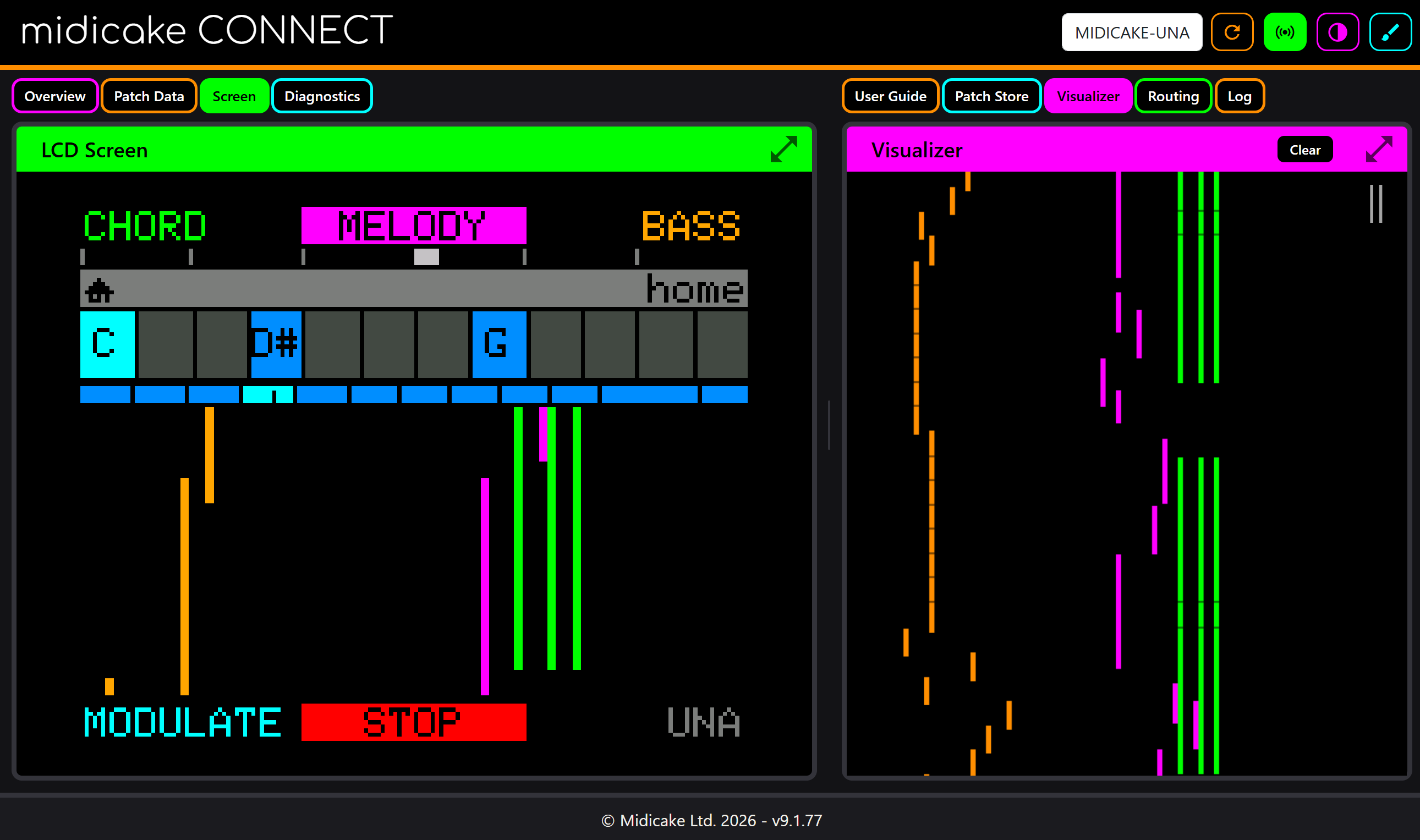
The Visualizer panel turns incoming MIDI into moving pictures, live. Every note your device plays becomes a shape, coloured by its MIDI channel - so the Chord, Melody and Bass parts are visually distinct voices, and the structure of what you're hearing becomes something you can watch.
It runs on the MIDI level of the connection (Chapter 5) - no Go Live needed. If notes are flowing, it's drawing.
The five modes
The glyph button in the panel header cycles through the modes:
| Mode | What it looks like |
|---|---|
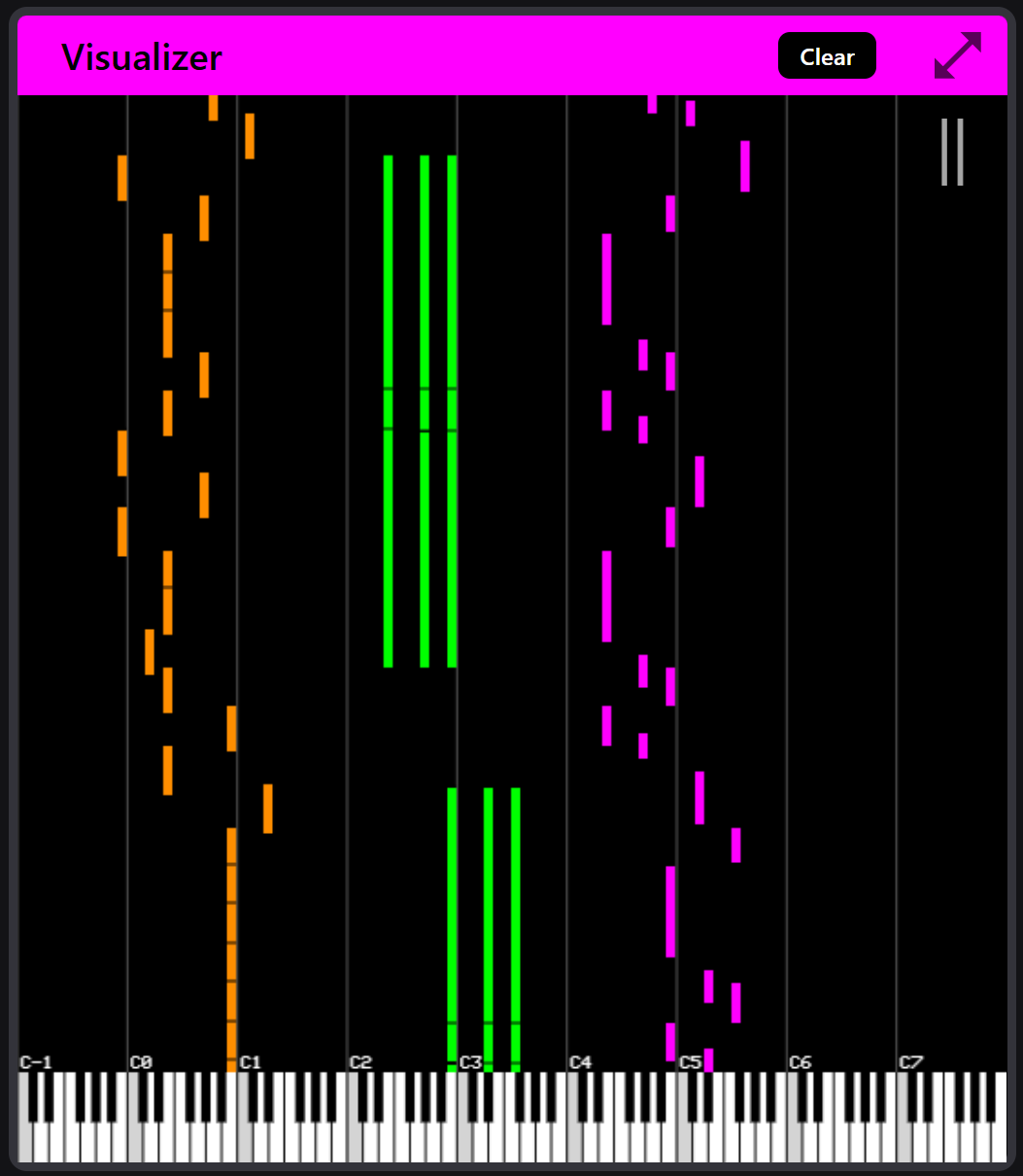
| Up-Scroller | Notes rise from the bottom as coloured columns - pitch across, time upward. The default. |
| Side-Scroller | The same idea rotated: notes flow horizontally, like a scrolling piano roll. |
| Starfield | Notes fly outward from the centre as points of colour - more fireworks than notation. |
| Circle | Notes arranged around a ring - pitch as position, activity as light. |
| Heatmap | A grid that glows where notes land and fades as they age - the density view. |
The cycle actually runs through the list twice: once with markers (bar lines and reference marks) and once without. Keep tapping until the combination feels right - your choice of mode and markers is remembered.
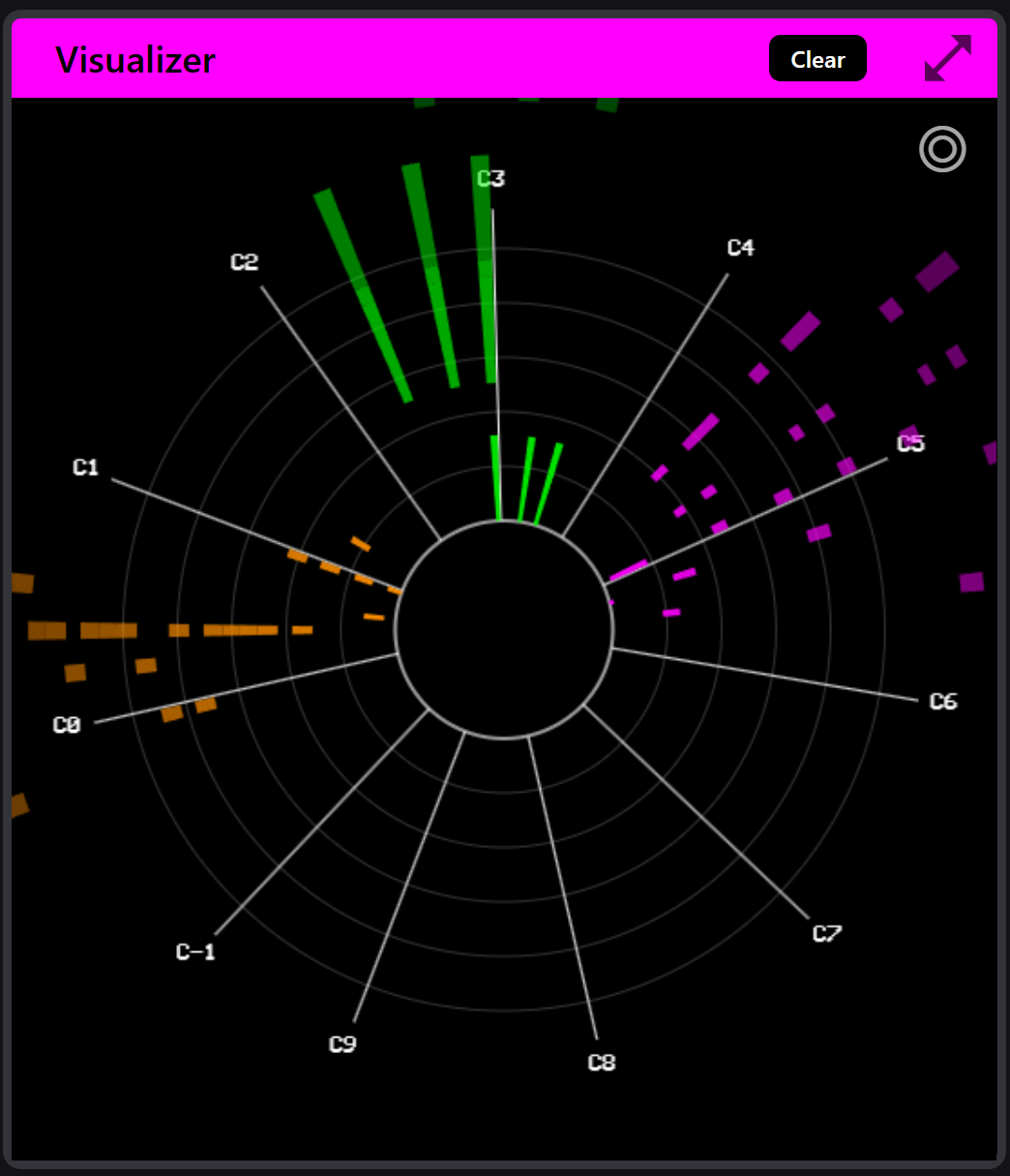
The Up-Scroller and Side-Scroller are the analytical modes - you can read the music from them. Starfield and Circle are the performance modes - they look wonderful at fullscreen behind a player. Heatmap sits between: it shows where the music lives across the pitch range.
Channels and colour
Colours come from the shared per-channel palette - the brush icon in the top bar (Chapter 4). One colour per MIDI channel, sixteen channels, the same palette the Routing wires use. Set your device's tracks to distinct channels and each track becomes a distinct colour thread in every mode.
Tempo and bars
The visualizer listens to MIDI clock and marks bars in the modes that show them. Tempo is detected from the clock stream itself, so what you see stays locked to what the device is playing - including tempo changes mid-performance.
The Clear button
Notes are drawn from note-on to note-off. If a note-off goes missing - a cable pulled mid-note, an app switched away - a shape can linger. Clear flushes everything and starts the canvas fresh. It hides in fullscreen to keep the show clean.
Fullscreen and Cinema
Like the screen mirror, the visualizer is built for fullscreen (Chapter 4) - and it's the other half of Cinema mode: in fullscreen, the Cinema button cycles Screen / Visualizer / Split. The split - device UI beside the note rain - is the one people put on projectors.